In this article, I will discuss the advantages of effective and simultaneous team collaboration through Microsoft Teams and highlight some other useful features that Teams offers. Microsoft Teams is a versatile platform that integrates communication, file sharing, and collaborative work under one roof. By seamlessly integrating with applications such as Word, Excel, and PowerPoint, it simplifies file sharing and team coordination. Having experienced various platforms, I find Microsoft Teams to be the most efficient yet least known method for collaborative projects. In this article, I’ll detail how you can utilize Teams most effectively.
1. Simultaneous Document Collaboration
One of the biggest challenges in team projects is dividing a document into different sections among team members and then merging them afterward. Regardless of how well each person writes their section, differences in fonts, referencing tools, figures, and table numbering can necessitate additional editing. While this might be manageable in smaller projects, it can cause significant time and effort loss in extensive projects.
For instance, suppose you’re writing the discussion section of a paper. Typically, you would need to finish this section before others could review or comment on it. The process of repeatedly sharing files back and forth complicates things further. Microsoft Teams addresses this issue by allowing team members to simultaneously collaborate on the same document.
With Teams, members can work on Word, Excel, and PowerPoint documents simultaneously, saving time and making the editing process more transparent. Documents can be opened directly from the Teams interface, allowing each user to work independently without conflicts. Changes are synchronized instantly, clearly indicating who edited which part.
Real-time change tracking and automatic version control enable easy reversion to previous versions. Additionally, commenting and reviewing tools facilitate specific feedback on particular sections, making the final approval process more controlled.
Another advantage is the ease of opening files on your desktop and accessing Teams from different devices. Even from an unfamiliar computer, you can log into your Teams account and seamlessly continue collaborative work, utilizing referencing tools without difficulty.
2. How to Create a Team in Microsoft Teams
Creating a team in Teams is simple and can be completed in a few easy steps:
- Go to the Teams Tab: Click on the “Teams” tab in the left menu (Figure 1).
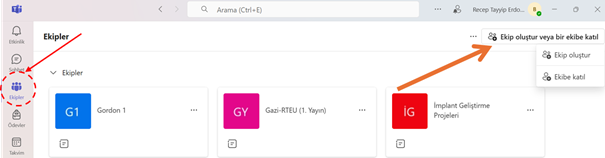
Figure 1. Access the Teams management screen through the “Teams” tab located on the left side of the Microsoft Teams main interface. Create a new team or join an existing one using the option in the upper right corner.
- Create a New Team: Click the “Create or Join a Team” button at the top right, then select “Create a Team” (Figure 1).
- Select Team Type: You can create a new team or use an existing Microsoft 365 group (Figure 2). Generally, the “Create from a template” option is preferred. Select the basic team option, then choose “Use this template.”
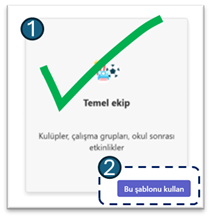
Figure 2. When creating a new team, select the “Basic Team” template (1), then click on “Use this template” (2) to begin the team creation process.
- Set Privacy Settings: Decide if the team will be open to everyone or restricted to invitees only (Figure 3). I typically choose the private option because I don’t want others outside my team viewing my content.
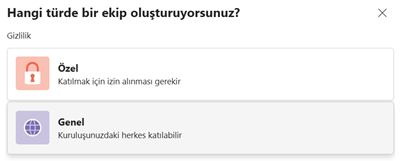
Figure 3. Set privacy settings during team creation. The “Private” option allows only invited users to join, while the “Public” option allows anyone within the organization to join. The “Private” option is commonly chosen for restricted sharing.
- Team Name and Description: Provide your team with a meaningful name and a brief description (Figure 4).
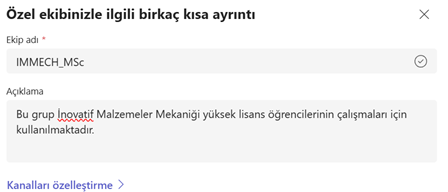
Figure 4. During the team creation process, assign a meaningful name and a brief description. In this example, the “IMMECH_MSc” team is described as a group used by Innovative Materials Mechanics graduate students for their research.
- Invite Members: Add team members using their email addresses (Figure 5). You can skip this step and add members later if desired.
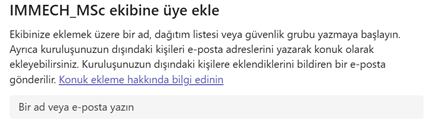
Figure 5. Team members are invited by entering their names or email addresses. People outside your organization can also be added as “guests” via email. This step can be skipped and members can be added later.
After creating a team, you can open specific channels for each project, share files, and organize meetings.
3. File Sharing and Version Control
File sharing and editing on the Teams platform are both quick and convenient. Each channel has its own “Files” tab, from which documents can be shared with team members (Figure 6).
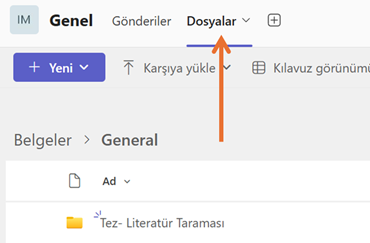
Figure 6. Each channel in Microsoft Teams includes a “Files” tab, enabling members to share documents, create folders, and edit content directly in applications like Word and Excel. Changes are automatically saved, and version history provides easy access to previous versions.
Files can be directly uploaded to Teams and edited instantly using applications like Word and Excel. All edits are automatically saved, and a version history is maintained, clearly showing who made changes and when. Documents can easily be reverted to earlier versions with a single click.
4. Channel Structure for Project Organization
The channel structure in Microsoft Teams allows for the systematic and efficient management of projects and tasks. Within each team, separate channels can be created for different projects or subtasks, simplifying information flow, organizing documents by topic, and focusing communication.
Channels can be created by selecting the “Add Channel” option from the team page (Figure 7). Channels offer three levels of privacy: Standard (open to all team members), Private (only invited members), and Shared (enables collaboration with external participants). Thus, each channel can be structured according to the sensitivity of the information.
Each channel has its own chat area, file folder, and note-taking section, facilitating organization in academic and corporate projects. Documents, discussions, and task management concentrated in specific channels provide clarity and accelerate project management.
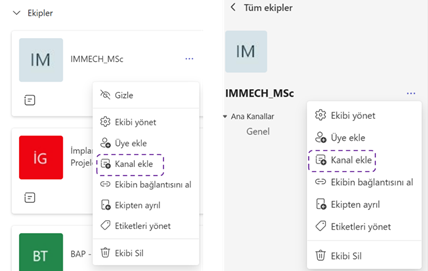
Figure 7. To add a new channel in Microsoft Teams, click on the three dots next to the team name and select the “Add Channel” option. This can be done from both the main team page (left image) and within the team’s channel view (right image).
5. Integrated Desktop and Web Interface
Teams is accessible through both desktop applications and web browsers. While both versions offer similar features, certain differences affect user preferences.
The desktop version operates more stably, delivers notifications more effectively, and synchronizes files faster. It is also suitable for integration with desktop software like Mendeley and Zotero. To open files on your desktop via Teams, click the three dots next to the file, hover over “Open,” then select “Open in Application” (Figure 8). Files can be set to open automatically in desktop applications using the “Change Default Application” option.
The web interface is highly useful for accessing Teams from various devices, especially in urgent situations or on public computers.
Teams also fully supports mobile devices, enabling participation in meetings, document reviews, and continued team communication on the go.
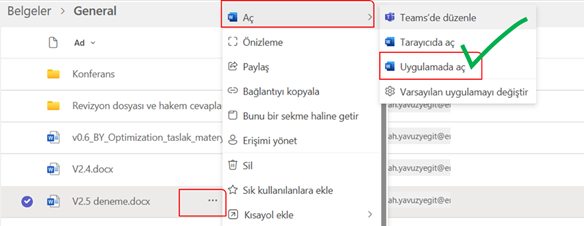
Figure 8. To open a file in a desktop application from Teams, click on the three dots next to the file and select “Open > Open in Application.” This method facilitates compatibility with desktop software like Mendeley and Zotero.
6. Practical Scenarios for Personal Use
Microsoft Teams is not just effective for teamwork but also beneficial for individual productivity.
- Access your documents and notes effortlessly from different computers by logging into your Teams account.
- Create channels just for yourself to take personal notes, create individual task lists, or archive your work.
- For instance, you could create channels like “Master’s Plans” or “Article Ideas” to serve as your digital workspace.
7. Conclusion and Recommendations
Microsoft Teams is more than just a communication tool; it’s a comprehensive digital workspace for document management, meeting organization, and project coordination. Its integrated structure significantly enhances efficiency and quality, especially in research groups, project teams, and academic collaborations.
Using Teams long-term prevents document loss, simplifies version tracking, and turns internal communications into organizational memory. Effective use of platforms like Teams also contributes positively to corporate digitalization, data security, and remote working practices.
By applying the steps outlined in this article, you can quickly establish a more organized, productive, and sustainable digital workspace.